3D Model Swap
This guide explains how to fully remodel a League of Legends champion by replacing the default character with a custom 3D model, while preserving the original r…
➤ Full Champion Remodel Tutorial
Replacing a Champion with a Custom Model
This guide explains how to fully remodel a League of Legends champion by replacing the default character with a custom 3D model, while preserving the original rig and animations.
➜ Requirements
| Tool | Purpose |
|---|---|
| LoL-Maya Plugin | Required to import/export .skn and .skl files in Maya |
| Autodesk Maya 2023 | Main 3D software for editing the champion model |
| GIMP / Photoshop | Edit and export textures (.dds) |
| LtMAO | Convert League .tex files to .dds and back |
| Flint | Extract original League champion files (.wad.client) |
| Jade | Edit .bin files if skin adjustments are needed |
| LtMAO cslmao | Load and test the custom skin in-game |
➜ Recommended
- Full Model Swap Video Guide
- Yoru’s Maya Tutorial (very in-depth)
➜ Step 1: Import the .skn and .skl Files
⚠️ Important:
Do not delete faces, vertices, edges, or any geometry after binding the mesh.⚠️ First-time import:
Import using File → Import, not drag & drop.
Ensure separated materials / meshes are enabled.
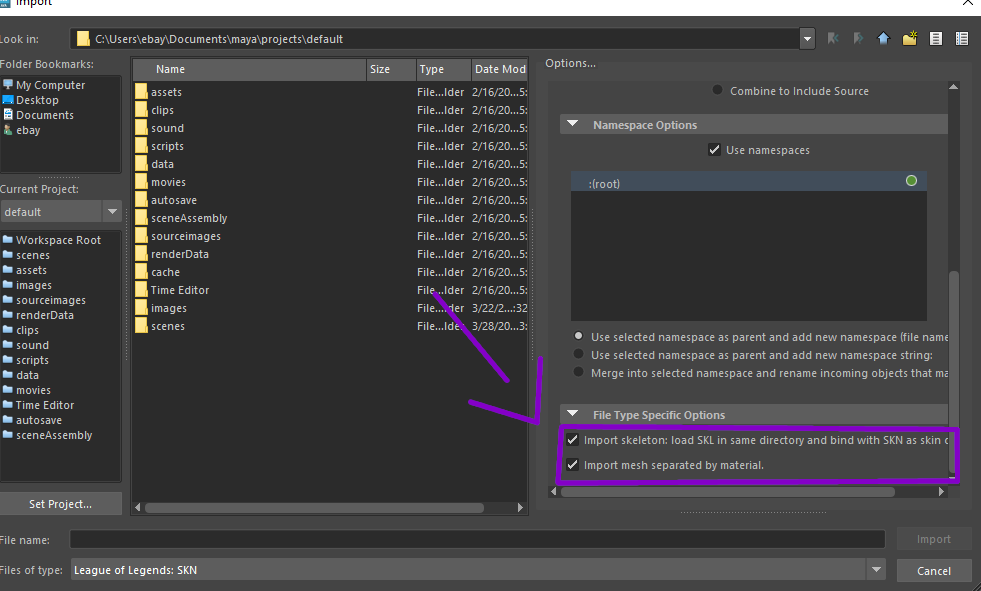
Instructions
- Install the LoL-Maya Plugin
- Import the original champion files:
.skn— Mesh (visual geometry).skl— Skeleton (bones & rig data)
- Import your custom model (
.fbx,.obj) into the same Maya scene
➜ Step 2: Align the Bones to Your Custom Model
Align the existing League skeleton to match your custom model’s proportions.
Rules
- ✅ Rotate bones only (
E) - ❌ Do NOT move (
W) or scale (R) bones
Why rotation only?
Moving or scaling bones breaks compatibility with League’s original animations.
Press this symbol to make bones visible through the mesh!

Enable X-Ray / bone visibility so bones are visible through the mesh.
Follow the video guide closely for correct alignment.
➜ Step 3: Bind the Mesh to the Skeleton
Bind the custom mesh to the League skeleton so animations affect the model.
Bones You Should Bind
- head
- neck
- spine
- chest
- clavicle
- shoulder
- elbow
- hand
- fingers
- hips
- pelvis
- knee_lower
- foot
- root (only in some cases)
⚠️ Do not bind helper bones such as
buffbones,knee_upper, ortoe.
How to Bind in Maya
- CTRL + Select all required bones
- CTRL + Select the mesh (last selection)
- Go to Rigging → Skin → Bind Skin → Options
- Set:
- ❌ Bind to: Joint Hierarchy
- ✅ Bind to: Selected Joints
This tutorial covers basic binding only. Advanced weighting requires practice or additional guides.
➜ Step 4: Align the UV Map for In-Game Textures
Before texturing, the UV map must be aligned correctly.
Aligning UVs in Maya
- Switch to UV Editing workspace
- Press F11 (Face Selection Mode)
- Select all mesh faces
- Move all UVs into a single corner of the UV space using the corner controls
This prevents broken or invisible textures in-game.
Matching the Texture in GIMP / Photoshop
- Open the original texture
- Adjust and reposition it to match the new UV layout
- If the texture doesn’t match the UVs, it will appear broken in-game
Saving the Texture Correctly
- File format:
.dds - Compression: BC3 / DXT5
- Mipmaps: Optional (recommended)
Resolution tips:
- 512×512
- 1024×1024
- 2048×2048
Always keep backups and test in-game.
➜ Step 5: Reverse Normals & Export the Model
If normals are incorrect, the model may appear invisible or inside-out.
Reversing Normals
- Select the mesh
- Go to Modeling workspace
- Mesh Display → Reverse
League requires normals to face outward.
Exporting the Model
- Select mesh + skeleton
- File → Export Selection
- Export as:
.skn(mesh).skl(skeleton)
⚠️ File names must exactly match the original champion files.
Example (Ahri):
Ahri.skn Ahri.skl
Replacing the Original Files
- Navigate to the champion’s folder
- Replace the original
.sknand.skl - Keep folder structure unchanged
💡 Pro Tip: Always back up original files before replacing them.